iPad workflow
How to choose a tattoo stencil app for iPad
The best station app is not the one with the longest filter list. It is the one that keeps the artwork readable, gives you direct control, and gets out of the way.
Keep the preview large
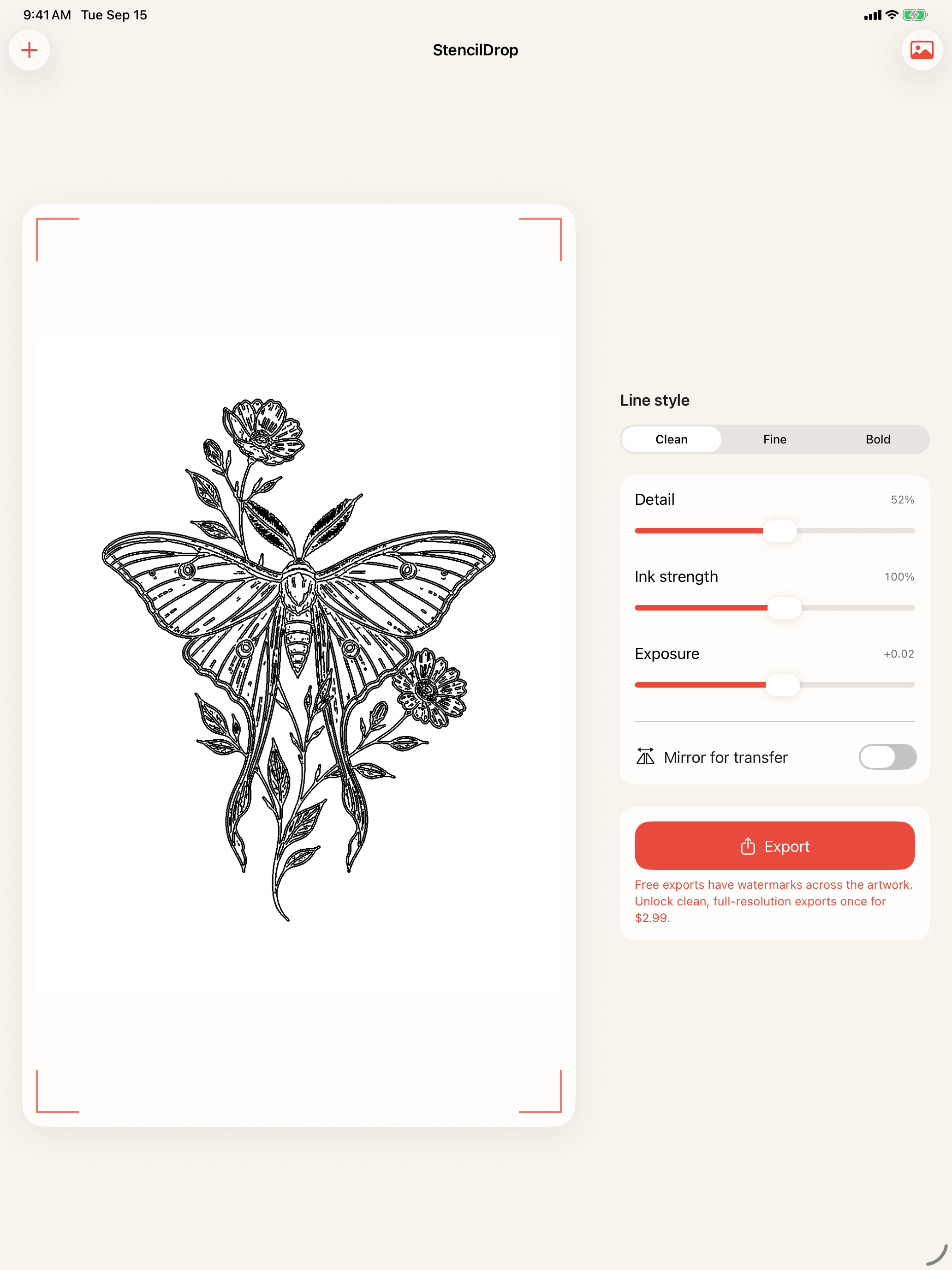
Stencil decisions depend on seeing the complete form and the local linework at the same time. On iPad, controls should live beside the canvas instead of covering it. A persistent split workspace also makes comparison easier because the image does not jump between editing modes.
Look for controls with clear jobs
Useful stencil controls should map to a visible outcome. Detail changes how many contours survive. Ink strength changes how dark and printable those lines become. Exposure helps separate a light subject from its surroundings. Crop and rotation set the composition. Controls that produce similar, unpredictable changes slow down the workflow.
Check where the artwork goes
Custom tattoo artwork can be commercially sensitive and personally meaningful. An on-device app can process selected images without sending them to a developer-operated server. Read the privacy policy and look for a concrete explanation of uploads, analytics, accounts, and storage rather than a vague privacy claim.
Station checklist
- The preview remains visible while controls are adjusted.
- The layout works in portrait and landscape.
- Mirroring is available before transfer printing.
- Exports have enough resolution for the intended size.
- The app can work without an account or network connection.
- Pricing is clear before the final export.
Test the complete path
Before relying on any app at a station, take one representative design from selection to test print. Confirm the crop, rotation, line weight, mirror setting, share sheet, and printer handoff. A beautiful preview is not enough if the exported file adds unexpected margins or loses detail.